Help with Scan & Go

Troubleshooting for common errors that you may encounter when using the Sam's Club Scan & Go app. Included are login, scanning, membership-related and checkout errors as well as an FAQ section.

Download the app:



Table of Contents:


Troubleshooting Guide

Sign in

Sign in Flow:

1. Tap the Scan & Go tab to sign in to the Sam’s Club app.
2. Enter the email address associated with your membership and the password of your online/app account.
  • SamsClub.com and the Sam's Club App use the same login credentials.
  • New users are required to create an alpha-numeric password of 8 or more characters.

If you forgot your credentials or password, scan your membership card to sign in. Then, tap Continue without signing in to either manually enter your membership number or scan your membership card.

  • If you're inside a club, you should see a welcome message and a scanner button:

Welcome to Sam's Club.

  • If you aren't identified as being in the club, you will not see a scanner button and will see a message saying:

Scanning only works inside the club.

  • You can access all other features of the application while outside the club except the scanning & buying feature.


Sign in Errors

Incorrect Sign in Information:

  • If you enter an invalid email or password, you will see:
Your email and password did not match.
  • After three failed login attempts, your account is locked for 15 minutes.
  • However, if you choose to reset your password, you will be able to log in immediately.
    • Try resetting your password for immediate access.

Error Screen:

  • Error Message: "There was a problem logging in. Please sign in again."
  • Error Description: The server is down, or login calls are timing out.
  • Solutions:
    • Force quit and try to sign back in to the app.
    • Delete the app and reinstall it. (This ensures the newest version of the app is installed).

Guest Membership:

  • Error Message: "Please use a register. Sorry, guest memberships can't use Scan & Go."
  • Error Description: Guest memberships cannot use Scan & Go. Guest members can only place online orders and should not be prompted to purchase at a register.
  • Solution: Purchase a membership to use Scan & Go.

Lost or Stolen Membership Card:

  • Error Message: "Your membership card was recently reported lost or stolen. Please call 888-746-7726 and let us help you."
  • Error Description: Your membership card was reported as lost or stolen, which causes the membership to go to a locked status.
  • Solution: Contact us or visit the Membership Desk in your local club.

Membership Inactive:

  • Error Message: "This membership number isn't in use. Please join again or contact us."
  • Error Description: The membership is in expired status.
Outage:
  • Error Message: "Scan & Go is temporarily down at the moment. Please check out at a register today and try the app next time you come in."
  • Error Description: If Scan & Go server is temporarily down, the app will ask you to checkout at register.
  • Solution: Checkout using a self-serve or staffed register.

Expired Membership:

  • Error Message: "It's that time, renew today. To keep using Scan & Go, renew your membership. You can renew in the app or at your club."
  • Error Description: The membership has expired, so the Scan & Go service is unavailable.
  • Solutions: Renew your membership to continue using Scan & Go:

Update Screen:

  • Error Message: "Sorry, we don't support this version anymore. Try out the new one!"
  • Error Description: In some cases, we do a force update and encourage updating the app to the latest version.
  • Solu tion: Delete the app and reinstall it. (This ensures the newest version of the app is installed.)

Still having trouble with login? 

  • If using office networks proxied to foreign countries like the (UK), you will receive a sign in error.
  • If trying to access app from hosting servers, sign in is blocked.
  • If using a VPN with out-of-country selected, sign in is blocked.

Back to the Top


Sign In Basic Troubleshooting

To Scan & Go without sign in or using your digital membership card:

1. Select Scan & Go from the bottom.
2. Select, Continue without signing in.
3. Select Scan your card or Type the number.

4. Unsure if you already have an account, use Digital Account Registration.

  • Select Account tab (human icon).
  • Select Sign In.

5a. If you don't have an account, create a username & password.

  • Membership number and first & last name must be entered exactly as they appear on your membership card.
  • Select Continue.
  • Create a unique password.
  • Select Save.

5b. If you have an account:

Message: A SamClub.com account already exists for this membership number.
  • Select Sign In, and you will be redirected to the Login page with username already entered.
  • Enter your Password and select Sign In.
6. If you forgot the password: 
  • Select Forgot password?, and a password reset link will be sent to the email shown.
  • Select Submit.
Message: We've sent you a link to reset your password. The link expires in 24 hours.
  • Check your inbox, spam, & deleted folders for an email from Sam's to Reset your password.
  • Open and select Reset Password.
  • Create a new password.
  • Select Save.
7. If you forgot your email:
  • Select Forgot email?
  • Complete required fields.
  • Select Submit.
7b. If the info matches your membership, email is prefilled and the password remains.
  • If unsuccessful, please visit the Membership Desk at any club or contact us. 

If your email address is linked to another membership,

  • Registration page shows a prompt after failed attempt:

[email address] is used with a different membership number.

  • You can
  • Select Yes, continue
    • OR
  • Select No, use a different email

Selecting Yes, you will receive a reclaim email.

  • Check your email (Inbox, Spam, or Deleted folder).
  • Open email & select Register membership.

When registration page reopens, you can register using the email linked to your old account.

  • Once you see the success modal, you are signed in.
  • Select Start Shopping.

Back to the Top


Purchase Errors

  • Error Message: "Scan again."

    • You can also try scanning the barcode on the:

      • Item
      • Shelf or item price sign
      • Pack (for multi-packs)
    • You can always purchase this item with an associate.

  • Error Description: This error is displayed only in case you are trying to scan the shelf code of the weighted item.
  • Solution: Scan the barcode on the product’s packaging.
  • Error Message: "Purchase at a register. This item needs to be purchased at a register.
  • Error Description: This error is displayed only in case you are trying to scan a restricted item.
  • Solution: Take the item to the register. Scan & Go cannot scan restricted items.
  • Error Message: "Something went wrong. Sorry, we're experiencing a problem. Please use a register."
  • Error Description: The server is not responding, or check calls are timing out.
  • Solution: This error is typically fixed by another attempt, or you can use a register to complete the transaction.
  • Error Message: "Something went wrong. Sorry, we're experiencing a problem. Please use a register."
  • Error Description: Our system encountered an error related to your payment method.
  • Solution: Use another method of payment to complete the transaction.
  • Error Message: "Your order could not be processed. Try another payment method."
  • Error Description: Card was declined.
  • Solution: Try again or use another payment method.
  • Error Message: "Something went wrong. Sorry, we're experiencing a problem. Please use a register."
  • Error Description: Checkout is in a terminal state after several failed attempts.
  • Solution: Force quit and try to sign back in to the app.
  • Error Message: "Something went wrong. Sorry, we're experiencing a problem. Please use a register."
  • Error Description: This is a general error message.
  • Solution: Force quit and try to sign back in to the app.
  • Error Message: "Sorry, we can't calculate your savings right now. Please try again or use a register."
  • Error Description: Tax calculation failed.
  • Solution: Please try again or use a register.
  • Message: Scan mode. App is scanning single items, multiple times, or items that you weren’t trying to scan. (Android ONLY)
  • Error Description: If you keep the scanner on a product or near the barcode for longer than required, it may scan the item and add it to your cart.
  • Solutions:
1. View/confirm the items and quantities before completing checkout.
2. Turn off the feature from scan barcode screen. In the upper right corner, there is a Continuous ON setting that would need to be turned off.
  • Error Message: "Please check out at a register. We couldn't complete your transaction and you haven't been charged. Please go to self checkout or a register to finish your purchase."
  • Error Description: We can't process your payment in the app right now. But don't worry, we'll sort it out!
  • Solution: Go to register or self-checkout to complete transaction by following instructions on the app.
  • Error Message: "Thank you! Make sure to take your paper receipt to show at the exit."
  • Error Description: This screen is shown after the purchase is completed.
  • Solution: Follow the instruction on the app.

Back to the Top


Alcohol Purchase Flow

1. After scanning age-restricted items, you'll see a prompt to show your ID at the door.
2. The transaction will not be processed until age is verified.
3. Enter valid date of birth.
4. Save DOB for next time.
5. Tap Continue.
6. You will be prompted to show your ID to the associate on the audit screen.
7. As soon as age is approved, a spinner shows that indicates the age is being approved.
8. Another spinner shows the transaction being processed after approval by the exit greeter.
  • There is a time limit on purchasing alcohol which differs by club.
  • Some clubs may have purchase limits per volume based on state/local laws.

QR Code screen for purchase of alcohol:

  • Message: ID verification needed.
  • Description: Show your government-issued ID to the associate at the exit. 
  • Solutions: If you have an alcohol item, show the exit greeter your audit screen QR code.
*Please use standard checkout (staffed register or self-serve checkout) if troubleshooting isn't effective.


Gift Card Purchase Errors

  • Error Message:  "Can't scan the barcode? Max eligible amount $500"
  • Error Description: Scan & Go Restriction — you can only purchase up to $500 in gift cards per day.
  • Solution: Purchase additional gift cards at a self-serve checkout or manned register.
  • Error Message: "Item not added. Max 2 per order"
  • Error Description: Scan & Go Restriction - you can only purchase up to 2 gift cards of certain brands.
  • Solutions: Purchase additional gift cards at a self-serve checkout or manned register.
  • Error Message:  "Purchase item at a register. This item needs to be purchase at a register. We'll remove this item from Scan & Go cart."
  • Error Description: Scan & Go Restriction - you can only purchase up to 2 gift cards of certain brands. 
  • Solutions: Purchase additional gift cards at a self-serve checkout or manned register.


Fuel Purchase Flow

You can buy fuel using Scan & Go:
1. Tap Fuel tile on Menu screen.
2. Select Continue.
3. Allow access to camera to scan the Fuel QR code by selecting OK.
4. Scan QR code on the fuel pump screen.
5. After scanning QR code, you'll be prompted to select a payment method.
6. App will ask for card's security code - CVV
7. Tap Confirm, the app will authorize payment and connect to the pump.
8. Pump screen displays fuel being pumped after activation.
9. Start fueling by lifting the nozzle and selecting fuel type.
10. Once fueling is complete, the app will show a receipt. 


Fuel Purchase Errors

  • You may have to confirm your CVV.
  • Entering correct CVV should resolve the problem.
  • Verify ZIP Code may be requested. 
  • Entering the correct zip code should resolve the problem.


Scan & Go Café

1. Tap Café tile on Menu screen to begin a new café order.
2. Select a category and pick item(s) to order.
3. To add items to cart, tap the Add button.
4. You can also scan café grab & go items with your order.
5. Tap View Order button.
6. Go to Check Out screen.
7. Slide to Pay.
8. Café order is placed successfully, see Order confirmation screen.
9. Go to Café pickup area and show order number.
10. Menu shows 'Pick up at café' in red as a reminder.
 
 
EBT Payment Flow
 

To Add an EBT

1. Select Check Out to add your EBT card.
2. Enter your EBT card details.
3. Choose EBT card* on the Add a payment card prompt.
4. Select EBT card as payment method before tapping Slide to Pay.
  • NOTE: *EBT must be selected for a transaction, or the default card will be charged.
5. Select Continue to verify your PIN.
6. Enter your four-digit pin on the next prompt.
7. After payment, show the generated QR Code at the exit. 


Tax-Exempt Flow
 
1. On Check out page, check the box to apply tax-exempt to all eligible items.
2. After selecting tax-exempt, you will be prompted to agree with the disclaimer.
3. Select Agree.
4. Select Continue to checkout.
5. After accepting disclaimer, message shows: *Tax exemption applied to all eligible items.
6. Check out like normal, select Slide to pay. 


Changing Payment Method

1. During checkout, select the Change payment button.
2. Select another saved card
  • OR
+Add new payment.
3. Select +Add payment button.
4. A pop-up will allow you to add card details.
5. Select Confirm to pay with the selected card.
6. A form to add a payment will show.
7. Add card info and select Save card.
8. MUST complete all required fields.
9. Select Billing address.
10. Check box to Set as default card
11. Select Save card to add.

Back to the Top


Deleting Payment Method

  • You can easily change or delete a saved method of payment.
1. Select Change payment during check out.
2. To delete, select Edit card next to the card.
3. Edit card screen appears.
4. Select Remove card.
  • Active accounts must keep one active card, per terms & conditions.
  • Message: "Remove cardAre you sure you want to delete this card from your Wallet?"
    • Select Confirm to remove.
    • Select Cancel to dismiss request.
  • Confirmation message: Card deleted successfully.
  • Your account will no longer show the deleted card. 


Membership Renewal

1. Sign in using expired membership account inside the club.
2. Menu Screen will show with a renew membership button.
3. Select Renew Today to complete renewal transaction.
4. Slide to Pay.
5. Check box to agree to the Membership Terms & Conditions.
6. Select Renew Membership. 
7. You'll see confirmation of a successful membership renewal. Confirmation is also sent via email. 


Scan & Go Multi-Transact

If you forgot an item, you can make another purchase before exit using QR code.

1. Tap Purchase More Items on QR screen to initiate a second transaction.
2. You will see a pop-up message:
Before your next purchase.
If you want to purchase items that require age verification, like alcohol, please use a register.
Items from your next purchase will be added to a new receipt.
3. Tap Start scanning.
4. You will be directed to scan items for second order. The cart screen shows how many items were in the first order.
5. Selecting Cancel order asks for confirmation:
"Are you sure?"
6. To cancel 2nd order, select Yes, empty cart.
  • OR
7. Select No, keep items to purchase.
8. Select Checkout and then Slide to pay.
9. After finishing second order, you will see QR code audit screen.
10. Swipe up, receipt will have two orders and two transaction codes.


 Membership - Account Page

 
1. Select Account (human icon).
2. Open membership card will show number & options to change your membership such as:
  • Renew membership
  • Upgrade to Plus & the amount to pay
  • Payment method
3. Select Save.
4. Select Membership Benefits to learn more about the perks of being a member.
Renew Membership
1. Select Account (human icon)
2. Select Manage memberships then you will see a message:
Expired on (Date) Renew Today
3. Tap Renew Today button.
4. Select Continue.
5. Select Slide to pay.
NOTE: If unenrolled from AR, Renewal button will show.
Upgrade
1. Select Account (human icon).
2. Select Upgrade to Plus.
3. Tap Check Out to pay.
Sam's Cash Balance
1. Select Account (human icon).
2. Select Sam's Cash to check your balance (if any).
3. Scroll down to see breakdown of your Sam's Cash (if any):
  • Plus membership rewards
  • Sam's Club Mastercard
  • Bonus Offers
Sam's Cash Savings
1. Select Account (human icon).
2. Select Savings to see:
  • Instant Savings
  • Everyday club savings
  • Travel and Entertainment
Change Home Club
1. Select Account (human icon).
2. Under Your profile, select Find other clubs and search using ZIP or city & state.
3. Select Your club.
4. A list of the closest clubs will show.
5. Select Make this your club to choose as your home club - you can change it any time.
6. Select Save.
Update Shipping Address
1. Select Account (human icon).
2. Under Settings, select Address book.
3. On Add address, select Add.
4. Enter the appropriate info.
5. Select Save once completed.
Update Personal Information
1. Select Account (human icon).
2. Under Settings, select Profile.
3. Update your email, password and phone number.
4. For security, you must confirm your identity.
5. Choose how the code is sent. It expires in 15 minutes but can be resent.
6. Select Save when completed. 
  • For help, please visit the Membership Desk at any club or contact us.


Sam's Cash

Using Sam's Cash

  • If Sam's Cash is available, it will be an available payment method.
  • When using Sam's Cash, the remaining balance shows during checkout.
  • Rewards can also be redeemed at a staffed or self-serve register.
  • Occasionally, you must verify your identity.
  • Don't worry, this is just to protect your rewards.
1. Check box to use Sam's Cash as payment. 
2. Slide to pay.


Sam's Cash Bonus Offer Program

1. Tap Services tab (4 dots icon) at the bottom.
2. Select Bonus Offers.
3. Scroll to learn about the latest offers.


Manage Sam's Club Credit Card

1. Tap Services tab (4 dots icon) at the bottom.
3. Select Manage Credit Card.
Prompt:
Log in to manage your credit card.
4. Your app & online online account login are the same.
5. If you don't have a credit account, you will need to create one.
6. For help, please call the number on the back of your card.
 
 Make Preferred Card
1. Select Account tab.
2. Select Payment methods.
3. Select Edit your card.
4. Under Card preferences, select Set as default card
5. Select Save.


Curbside Pickup Check-in

1. When you see the notification: 
Your Pickup order's ready
2. Select I’m here once you arrive at the club.
3. Park in the numbered Curbside Pickup parking area.
4. Enter your spot number and select Done.
After checking in, Sam’s will confirm:
We'll be out in 5-10 minutes.
5. Select Got it to acknowledge.
6. Select Change spots, if needed. 


One Time Passcode (OTP)

To ensure security, a 6-digit code is required to confirm your identity.
By selecting Send code, you acknowledge & agree to the mobile alert terms.

NOTE: OTP is a security measure that requires password or pin number, a fingerprint or face scan. The code is normally delivered within 10-15 seconds.

Enter your 6-digit code sent to the encrypted number shown & select Done.
BIOMETRICS:
Touch &/ Face ID can be used on updated iOS & Android devices.
 
1. Select Face ID toggle to turn on biometrics.
2. You must agree to the terms and verify identity via SMS or email.

Confirmation message:

Use your biometric info for verification instead of a code from text or email.
3. Consent is required - consent by selecting OK.
4. Open Privacy Notice to see the terms. You must verify identity via SMS or email to enable biometrics.
5. By selecting Send code, you acknowledge & agree to the mobile alert terms.
6. Enter 6-digit code & select Done.
7. Select Allow to use biometry for authentication.
 
After activating Biometrics:
Your account's Face ID toggle will show an active status.


Sam's App Home Screen Buttons

GUIDELINES
  • Select More button (3 dots icon):
  • Club Locator - Find any Sam's Club by zip or city & state.
  • Lists - Create & manage shopping lists, see frequently ordered items.
  • Pharmacy - Manage prescriptions, refills, & immunization.
  • Sam's Club Credit - Apply & manage Sam's Club Mastercard.
  • Savings - See current & recently redeemed Instant Savings.
  • Tire Finder – Find tires approved for a specific vehicle or search by tire size.
  • Feedback - Share your experience with our products or services.
  • Travel - Discounts on hotels, rental cars, theme park tickets, shows, etc.
  • Optical - Details about Sam's Optical.
  • Photo - Upload & order prints, photo cards & custom gifts.
  • Hearing Aid Centers - Find a Sam's Club Hearing Center or edit your appointment.
  • Bonus Offers - Link credit/debit cards to earn rewards from 3rd party merchants.
  • Cake - Order custom cakes & cupcakes online and pick up at your local club.
  • Fuel - Details about Sam's Club Fuel Centers and pricing.


FAQ

Will Sam's Cash work with Scan & Go?

Yes, you are able to make purchases with Sam's Cash.

Can EBT be used to make a purchase using Scan & Go?

Yes. Sam's Club currently accepts SNAP, also called EBT cards, at all club locations but not for any SamsClub.com purchases.

Can Gift cards be used to make a purchase in the app?

Yes. You can pay with gift cards in the app.

Will non-members have to pay a surcharge/up-charge to use Scan & Go?

Non-members cannot use this service.

Is there a minimum/max order size?

There is no minimum, but there is a maximum order total of $1,000 per day.

Will my login information and credit card information save?

Yes, you will only need to log in once. Credit card information is also saved, and you can choose between multiple cards on file. However, if you made a transaction using membership login by scanning your membership card and not signing in to your account, we do not save your credit card information.

How do I change the Membership number in my app?

Delete the app and reinstall it with the new or updated Membership information.

What is the lane for Scan & Go with illuminated arrows on the floor?

To make it easier for Scan & Go shoppers to bypass the registers and find the exit. It is especially useful during busy times. The arrows on the floor are projected; members don't have to exit through here.
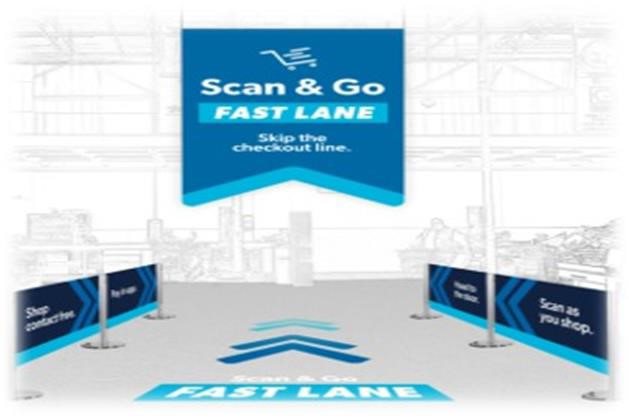
Scan & Go lane with illuminated arrows

How do I return items using Sam’s Club Scan & Go app?

Receipts are stored in the app. Bring merchandise and digital receipt to the Membership Desk for help with a return.

Member Satisfaction Guarantee Terms & Conditions

Can I print my receipts?

Navigate to the receipts. Select the desired receipt, then select export button on the top right. Once exported, the receipt can be printed out.

Is this available for Microsoft phones?

No, but we are working towards it.

Is Scan & Go available for tablets or foldable phones?

It is not available on tablets (any device with screen dimensions exceeding 600dp).

Scan & Go isn't available on foldable phones in tablet mode. Phone mode is required to use the app.

Was this answer helpful?
Anything to add or make clearer?